
FAQ
Account & Profile
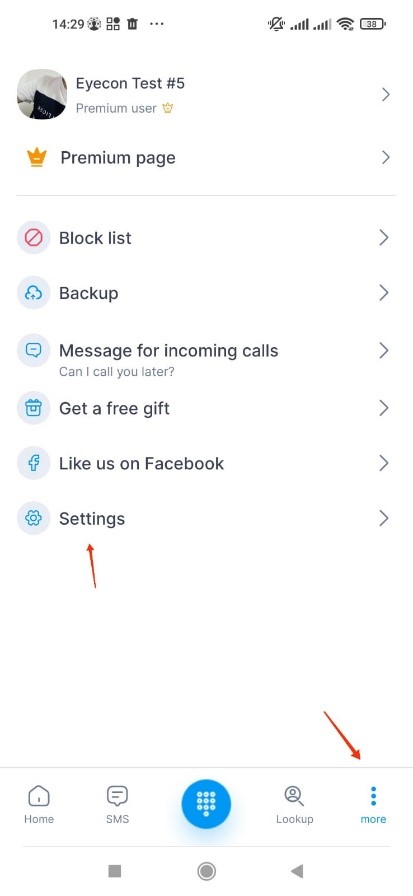
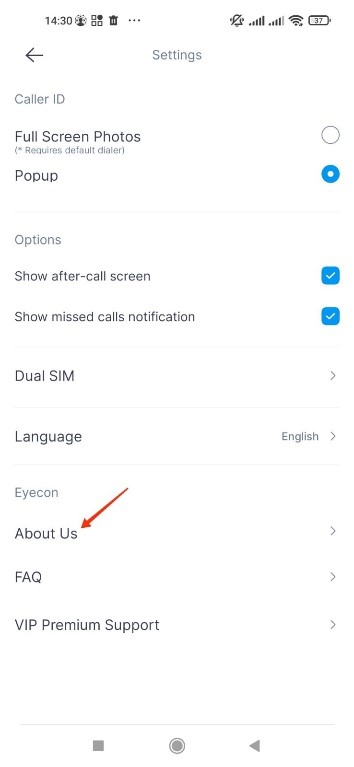
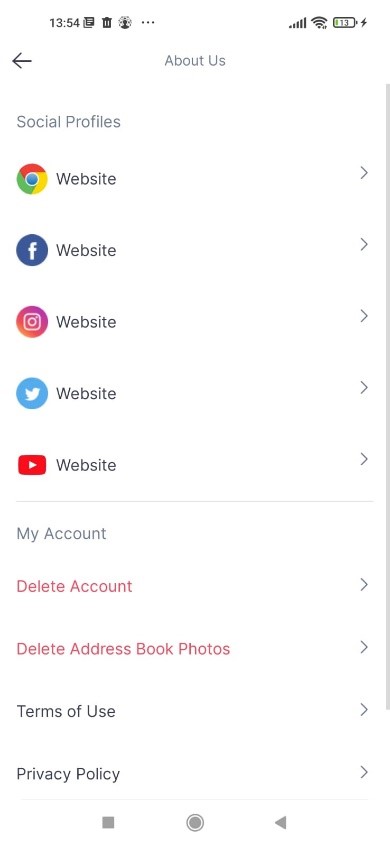
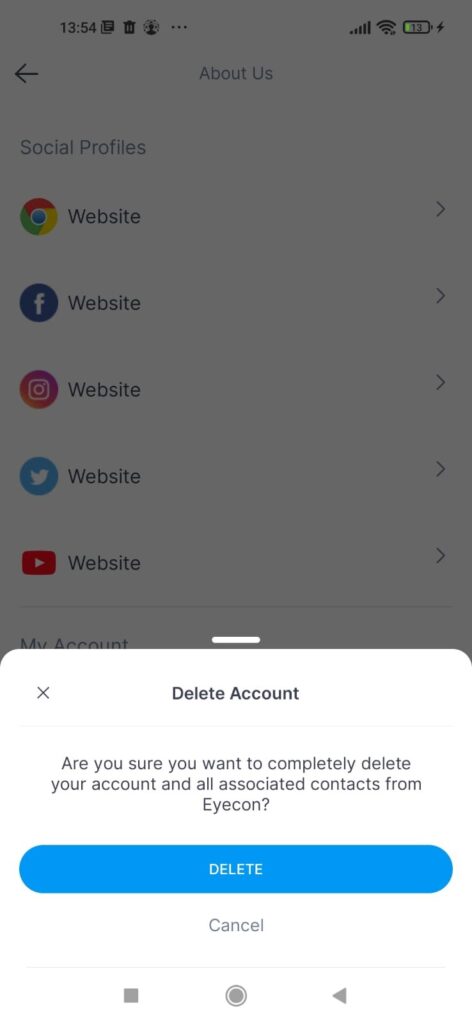
Follow these steps to delete your account:
MORE -> SETTINGS -> ABOUT US -> DELETE ACCOUNT
* Note that this will completely delete your account and all associated contacts from Eyecon.
** If you don’t have Eyecon installed, please send an email to [email protected] with your phone number including country code and we will delete your information.
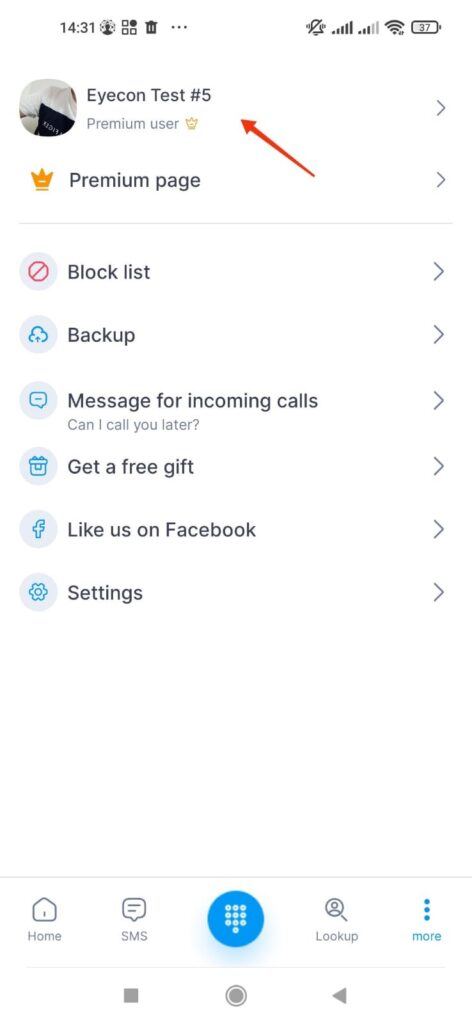
To edit your name:
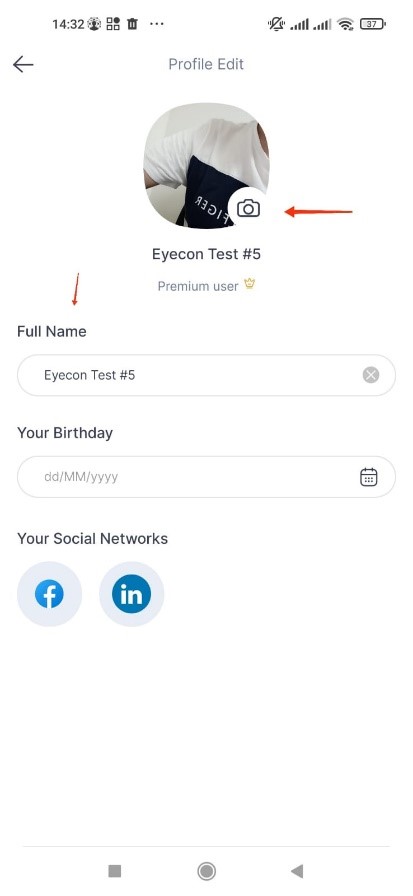
Go to More > Select your profile > type your name.
To edit your photo:
Select camera option on the bottom right of your photo
Choose whether you would like to pick a photo from your gallery, camera, Facebook or LinkedIn
Crop the photo and then click the check button
Editing your name and photo will change the profile that all Eyecon users see associated with your phone number, friends who have already saved your information will get a notification to update on the Photos screen.
To edit birthday – under your name you can enter your birthday
To Contact us directly, please use one of 2 methods.
Best method – Through our app:
Go to More > Settings > Write to us and all of the details of your phone will appear in an email. Add any questions you may have.
Second method – Send a Detailed email to [email protected]
Caller ID & Spam
Block & report spam:
How to block a contact or Report SPAM from the “History” or from the “After call”
Block & report spam:
How to block a contact or Report SPAM from the “History” or from the “After call”
Block Number and report SPAM from History – No contact/contact:
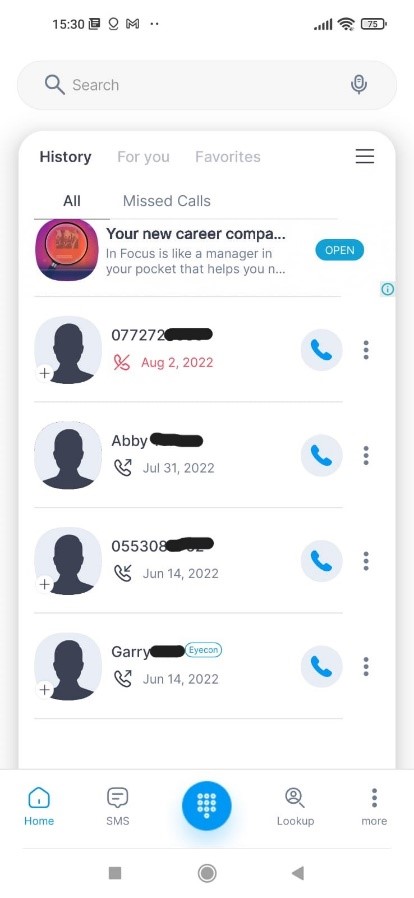
- Open Eyecon
- Go to history
- Choose a phone number from your call history
- Click on the 3 dots
- Click on block report spam button
- A pop-up BLOCK AND REPORT SPAM will open
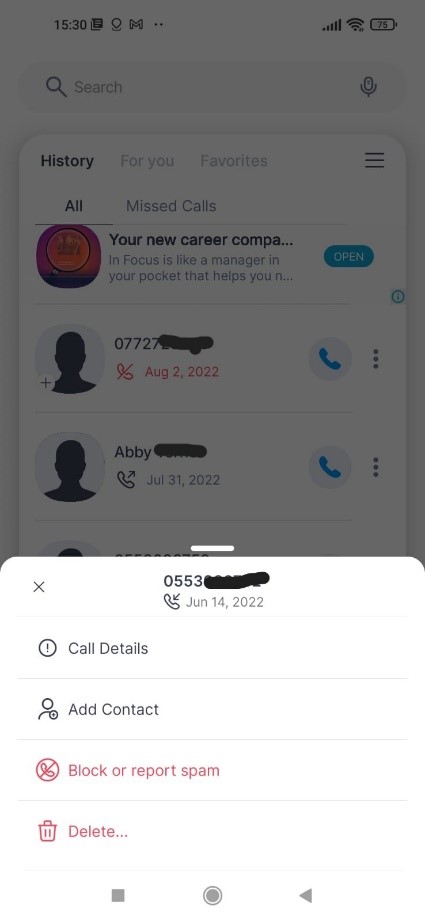
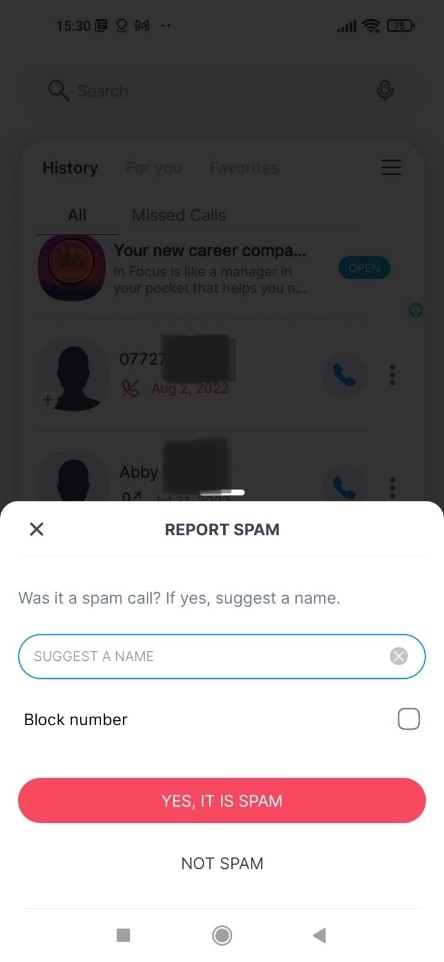
- Once you block the number you can unblock it in the same way, from the pop-up block and report spam – uncheck the box you selected to block the number, it will be open now.
- You can also go to block list by going to More > Block list > Select 3 dots next to number > Unblock Number
- Press the small red block sign and this will unblock this number.
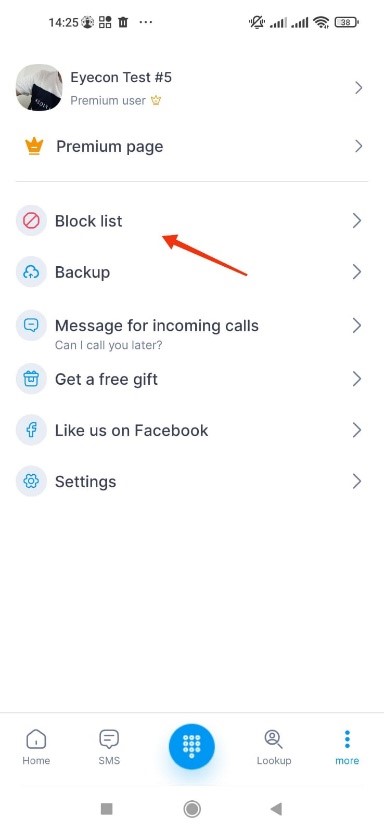
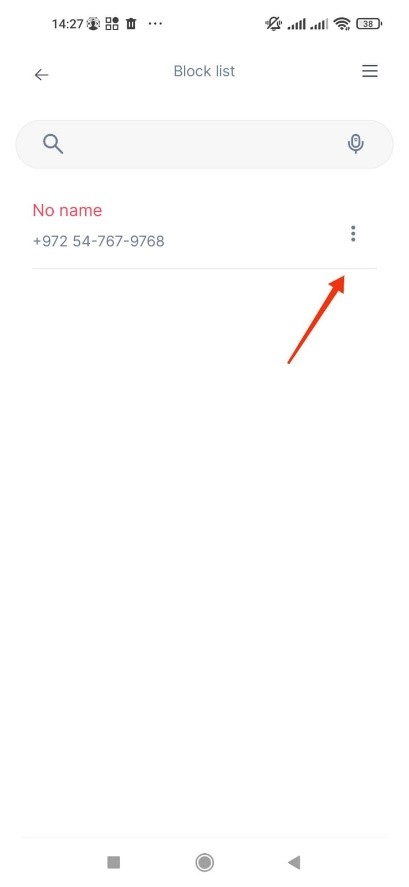
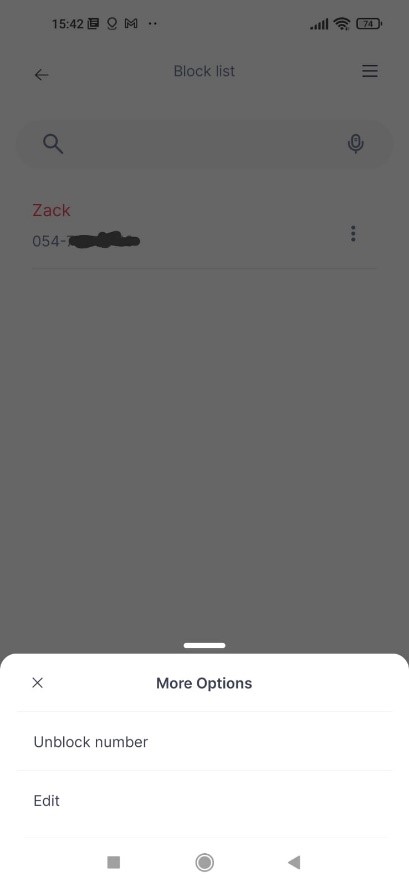
Block the number – By selecting the box under the “suggest a name” bar
Report as spam or report as not spam
If you report as spam, and you suggest a name in the next incoming call from this number, you can view it as SPAM with the name you assigned.
If you report as not SPAM. and you only block the number, this contact will not be able to call you, but it will not be saved in our database as a SPAM suspect.
- incoming call from a “maybe spam” number
In the “after call” appears the pop up “Maybe SPAM”, (the caller ID is orange)
in the pop up you could:
- Suggest name for the number
- Block the number
- Report spam
- Report not spam
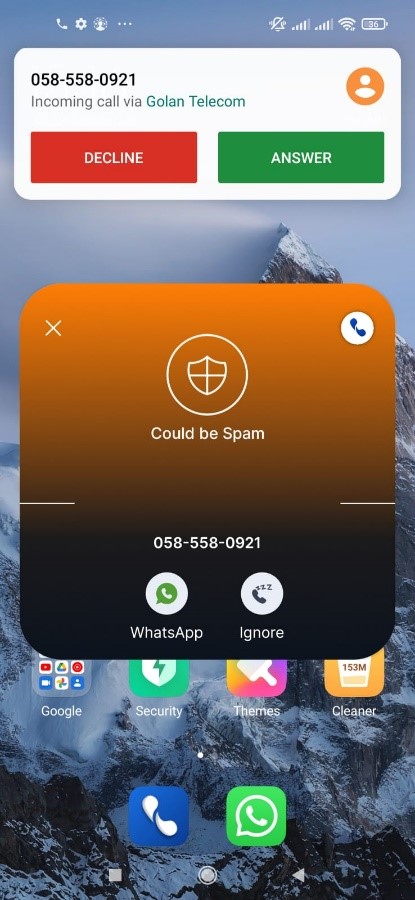
2. after an incoming call from a “full spam” number, (caller id is red)
In the “after call” to report a SPAM number, click on the 3 dots and select “block or report spam” and you will see the pop up to block and report
3. Call from unknown number which you want to report spam – select 3 dots > Block or Report Spam > Decide if to – Suggest a name, block number and report if Spam/not spam.

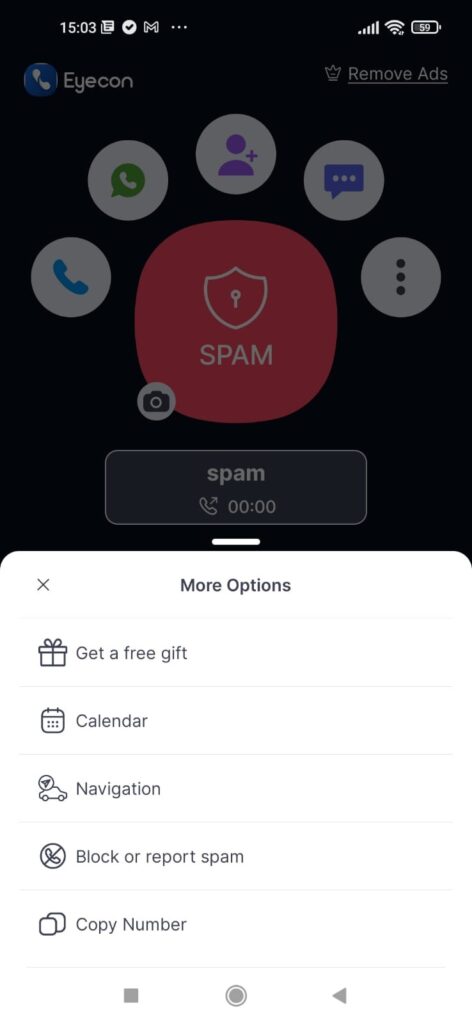
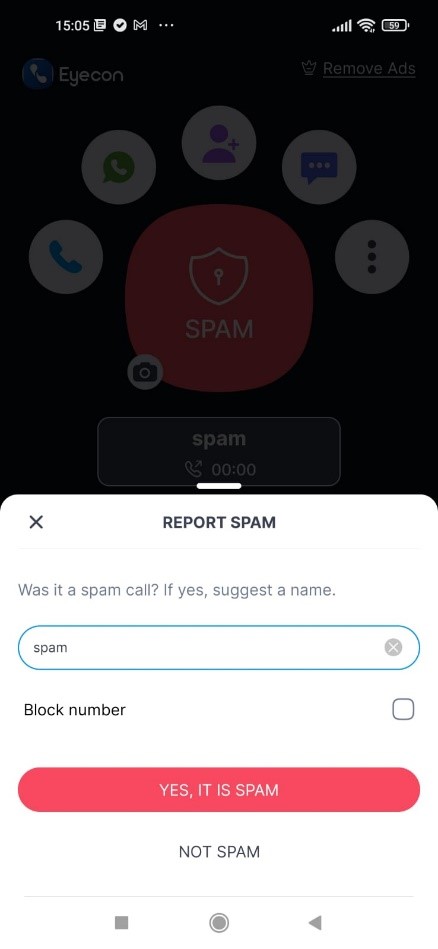
- Open Eyecon
- Click on More (3 dots on the bottom right)
- Click on block list
- In the block list screen click on the menu (hamburger button) …
Check the option “Block all SPAM calls“
Dialer
Due to changes in Google’s policies, call recording is no longer supported by Eyecon. You may still access old Recordings by going to More > Settings > Recordings.
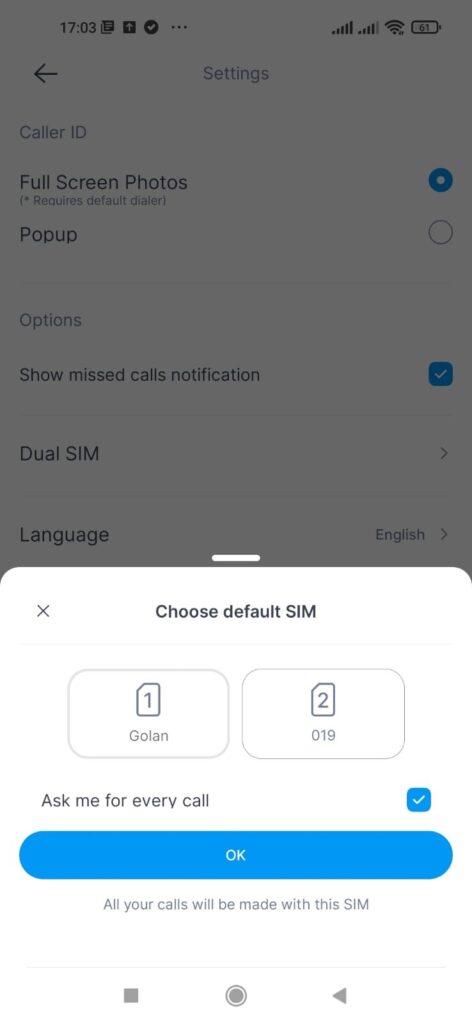
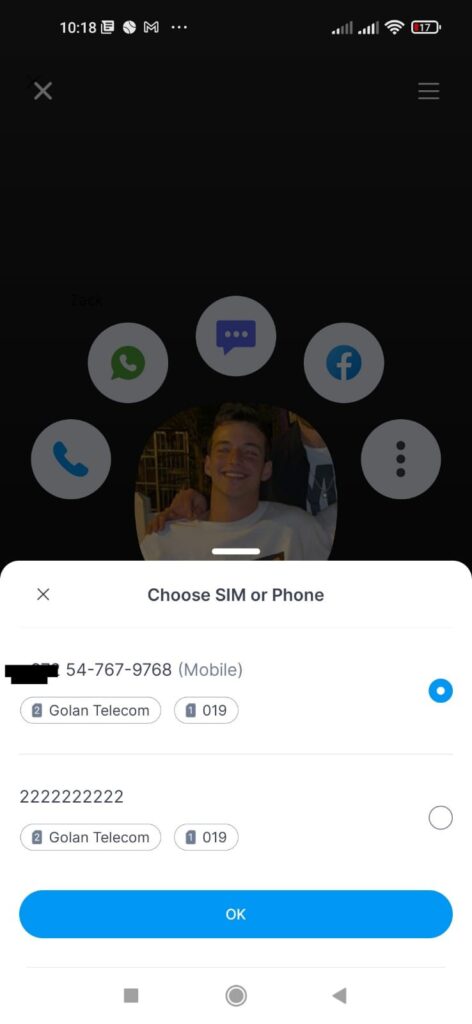
The first time a user with 2 SIM cards makes a call they will be prompted with the choice of SIMs to use for that call –
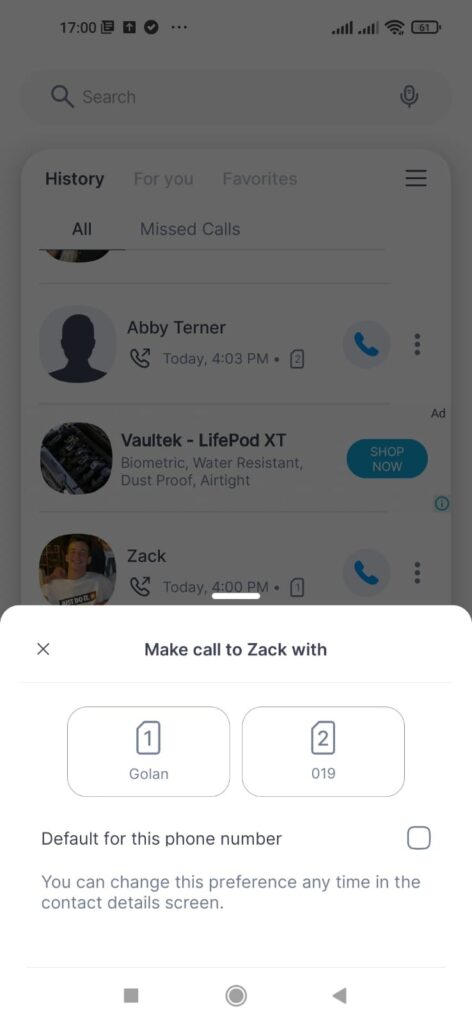
- To make that SIM the default for that specific contact
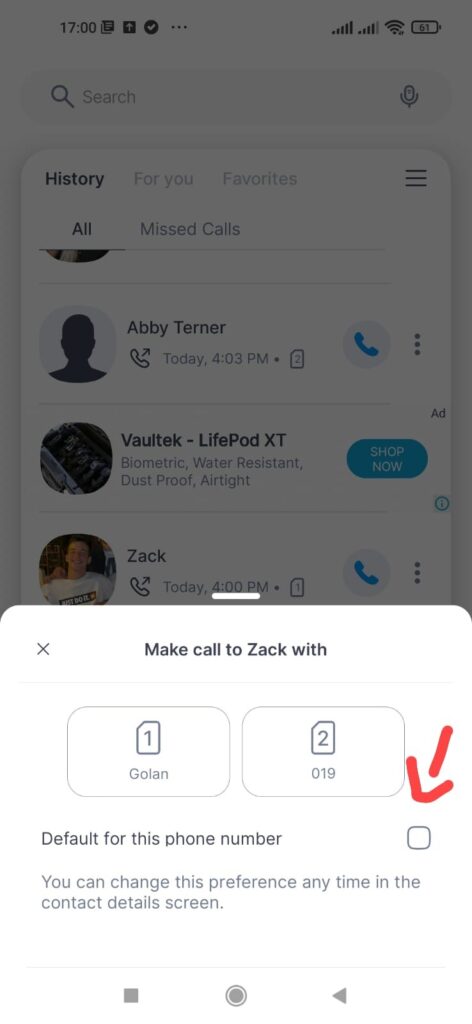
- To make that SIM the default choice for all calls
OR
- To be shown the prompt for every call – Go to More > Settings > Dual sim
The default choice can be changed in the settings by going to More -> Settings -> Dual SIM .
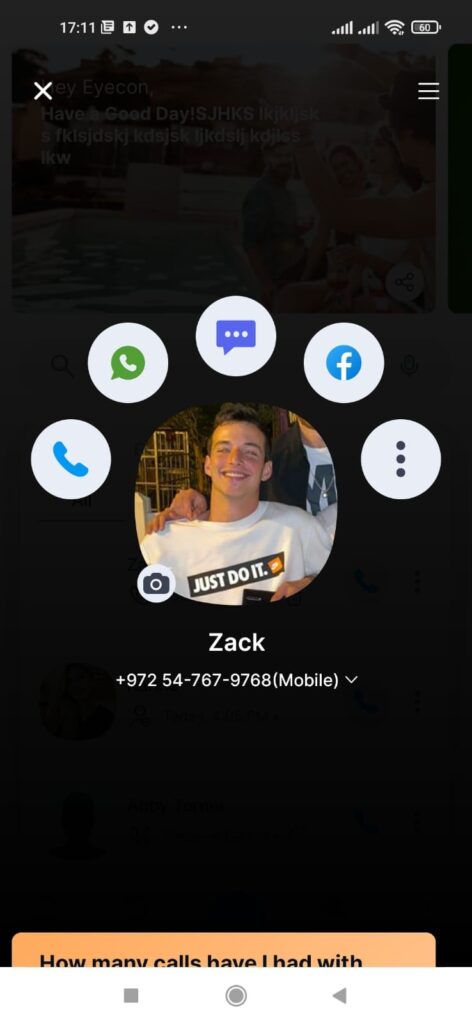
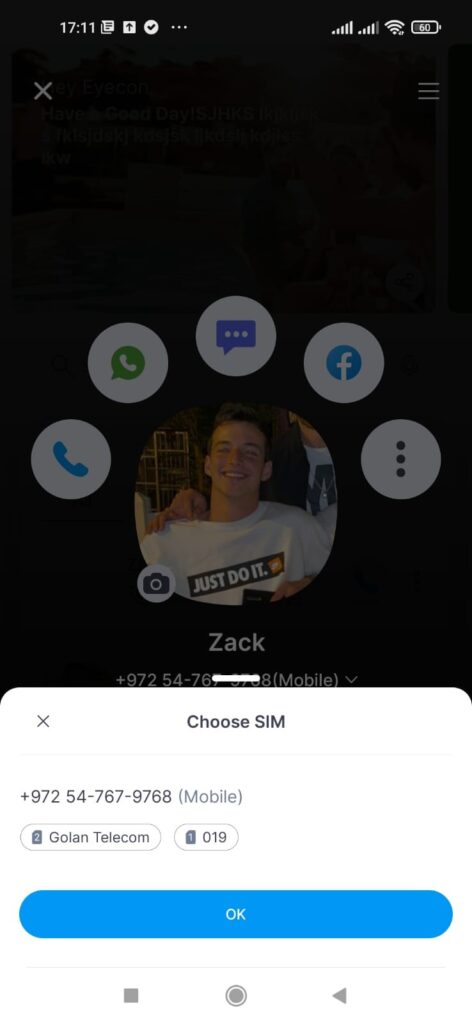
The default SIM choice for all calls or per contact can be overwritten for specific calls by clicking the arrow by a contact number and selecting the desired sim.
You can add a new contact using 3 methods:
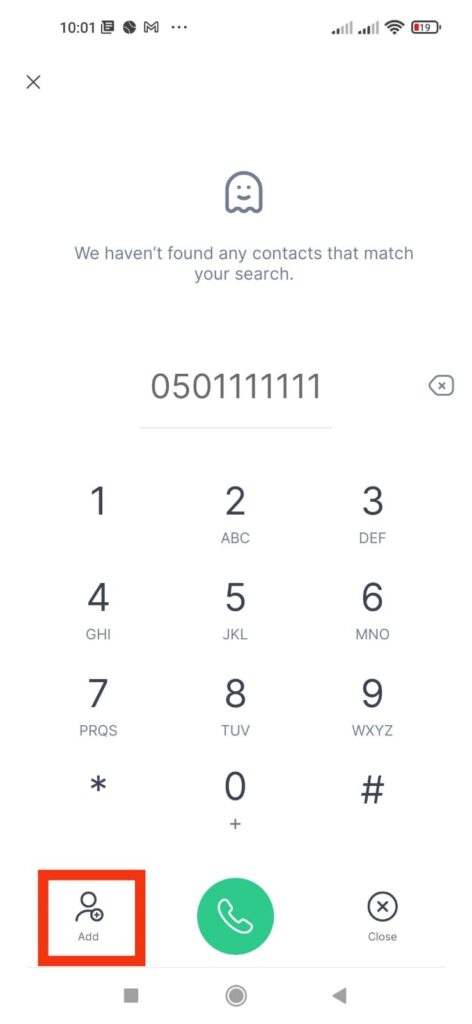
- Type a phone number from the number pad in Eyecon and then press “Add Contact”. You will then be presented with the option to save the number as a new contact with that person’s name and photo already filled out based on our data.
- Type a phone number from the number pad in Eyecon and make a call. At the end of the call, you will be presented with the option to save the number as a new contact with that person’s name and photo already filled out based on our data.
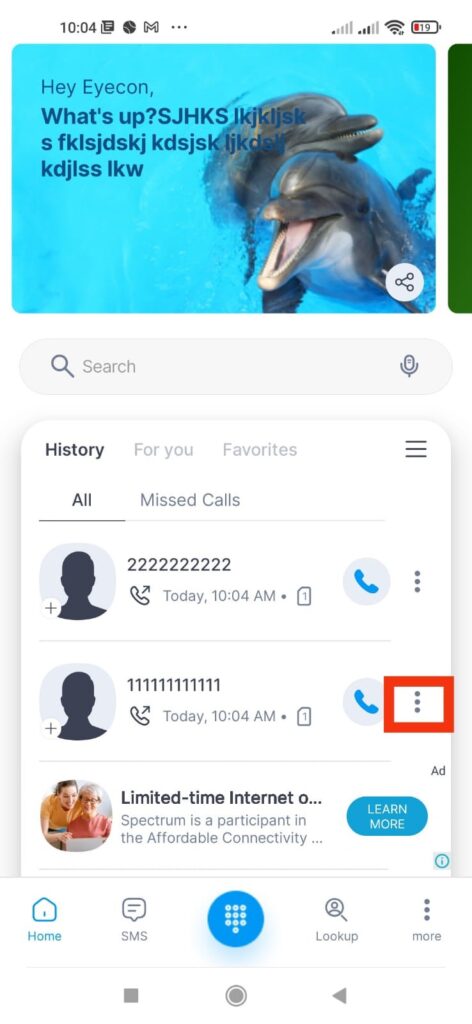
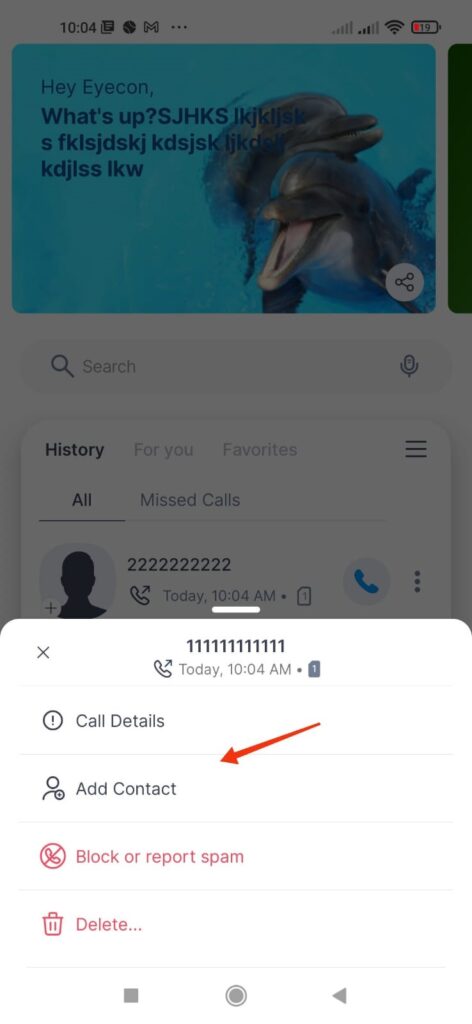
- From the History page – Select the 3 dots next to the number > Select Add Contact.
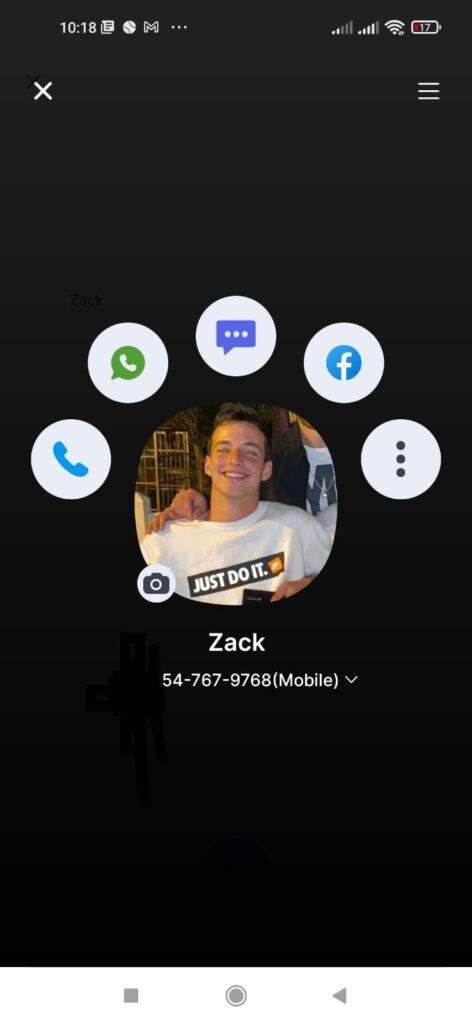
To change a number, click the arrow next to the phone number on your contact’s profile page and on the next window select the number you would like to call.
The number will be assigned as the default number for that contact until you change it again.
To make Eyecon your default dialer –
Start by moving the Eyecon icon to the bottom of your phone for easy and immediate access every time you want to make a phone call.
When downloading Eyecon, you will be asked to provide permissions to the app and to choose Eyecon as your default dialer.
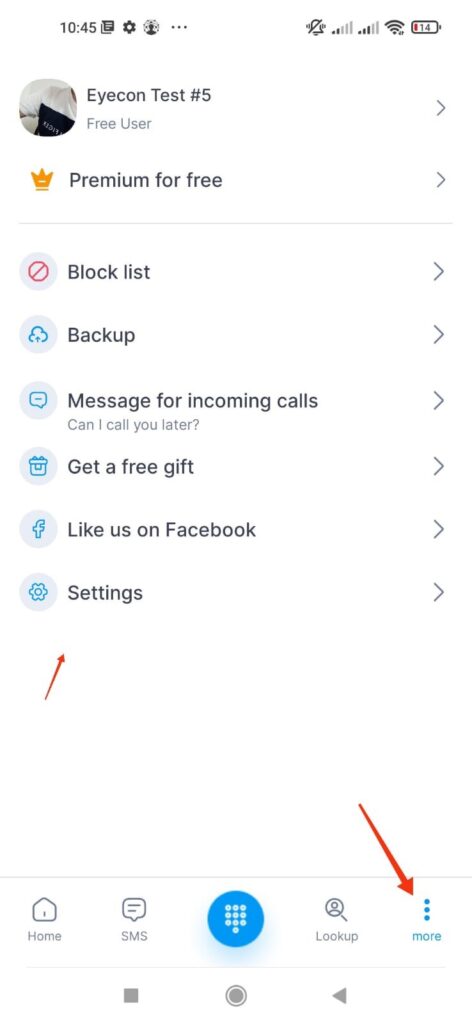
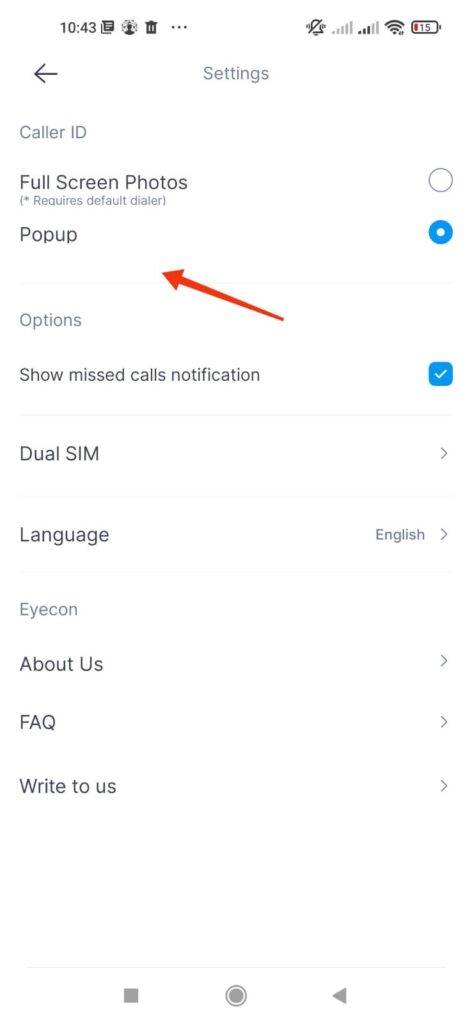
To make Eyecon your default dialer after registration, you can go to More > Settings > Full Screen Photos > Set Eyecon as default dialer.
You can always change full screen photos back to pop up by going to Settings and selecting “Popup”.
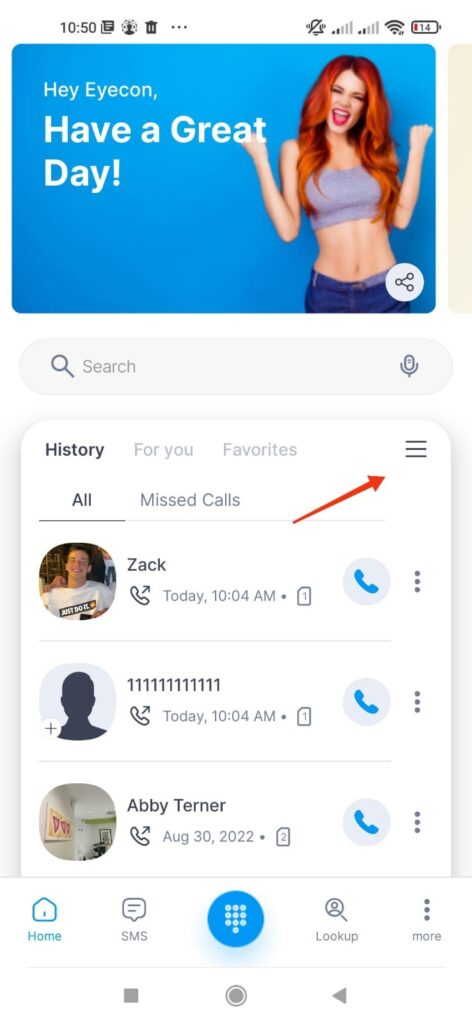
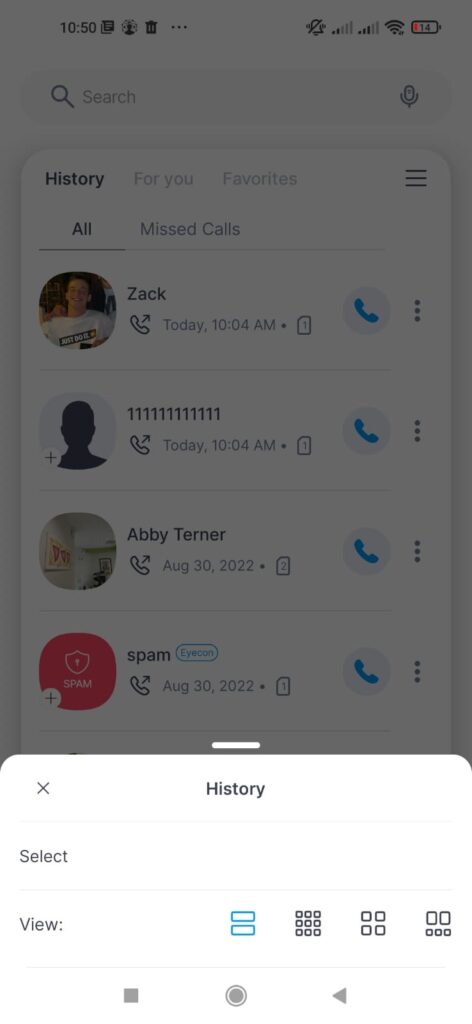
To choose the size of contacts in your address book, click on the hamburger menu on the top right of your address book and choose your preferred option.
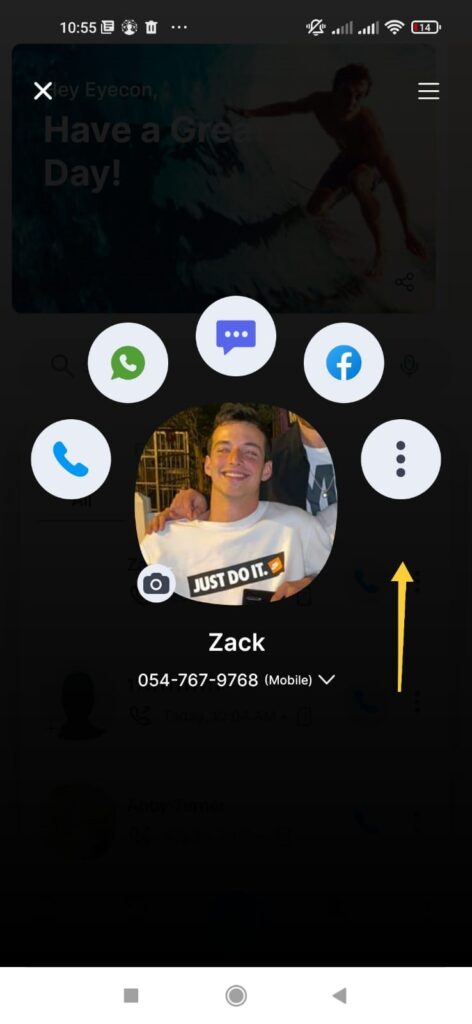
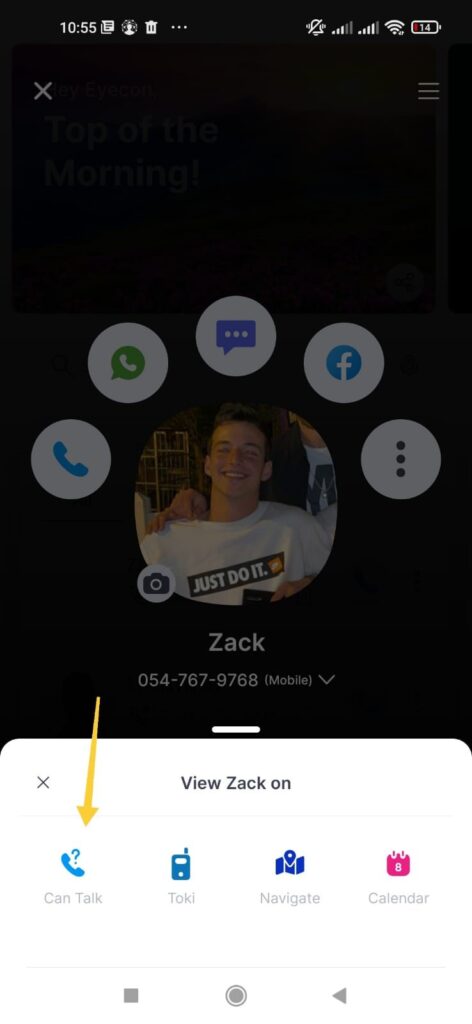
Our “can you talk” feature allows users to check if friends using Eyecon are available to speak before calling using an unintrusive messaging system.
To use this feature:
Click on the 3 dots button on your contacts profile > Select “Can Talk”
Note that if you see an invite button instead of this button check availability , that means you need to first invite them to use our app before you can enjoy this feature together.
You will see in the status box how long it has been since you sent the “can you talk” message and if your contact has seen the notification.
Once you have sent the message, your contact will see a screen with your picture and the option to either decline, answer that they are available to talk or call you directly.

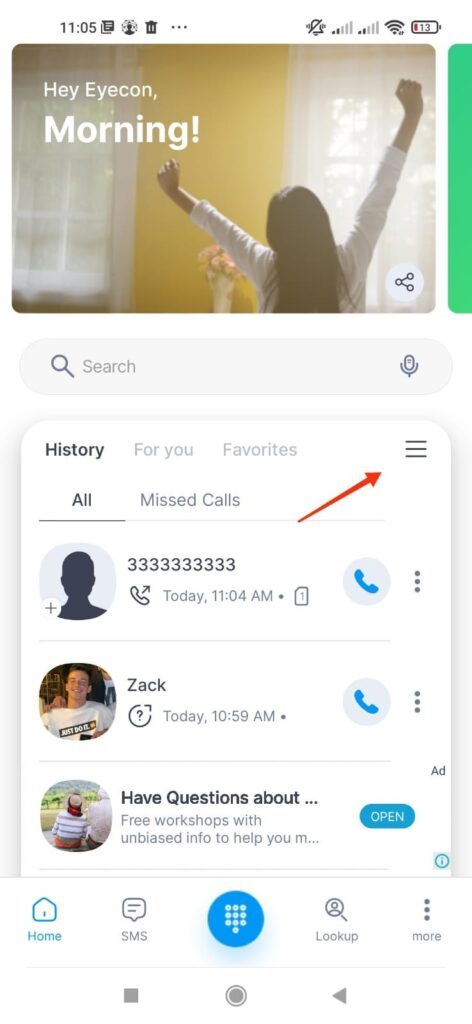
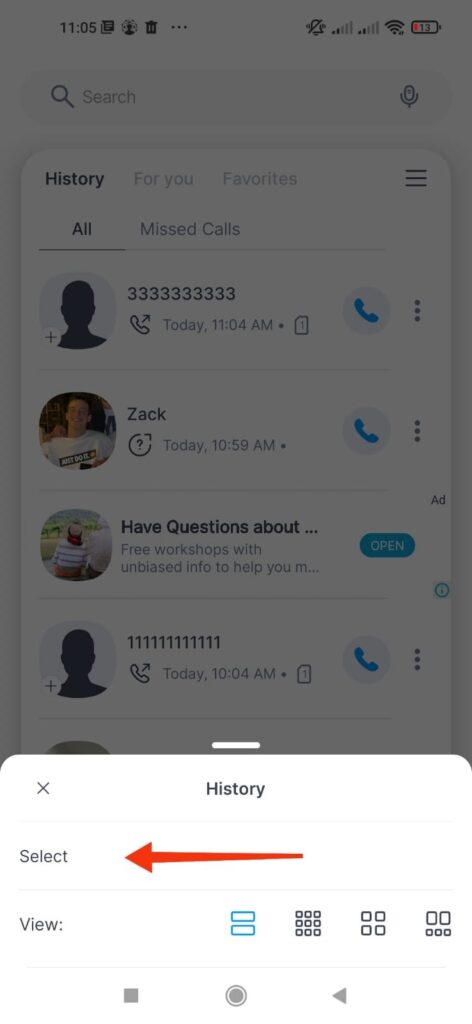
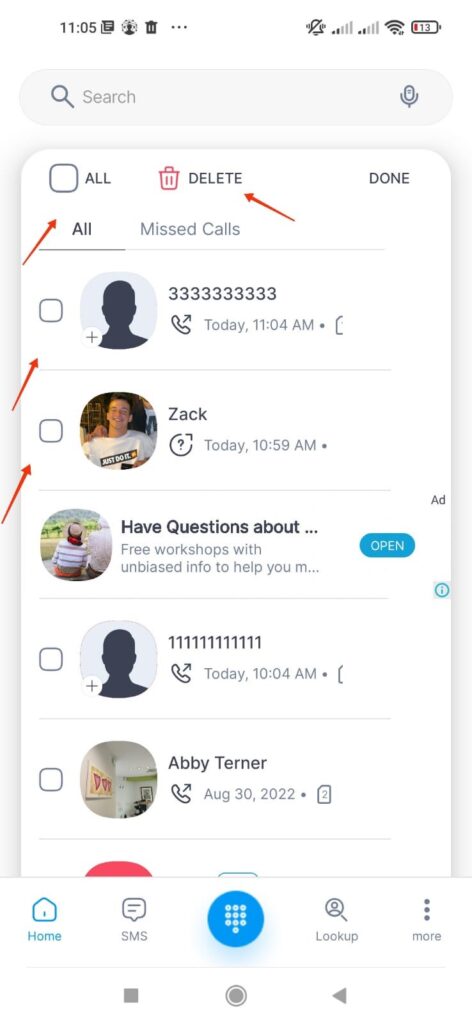
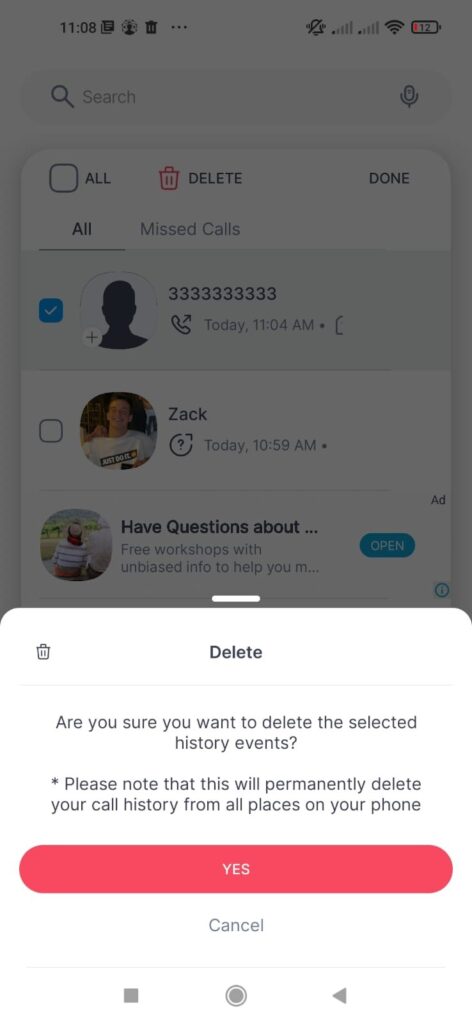
Go to History > Select hamburger symbol > Press on “Select” > Select the contacts you want to delete/ All > Delete > Select “Yes” on popup menu.
Eyecon is an intuitive app, so the more you use our dialer the better experience you will have.
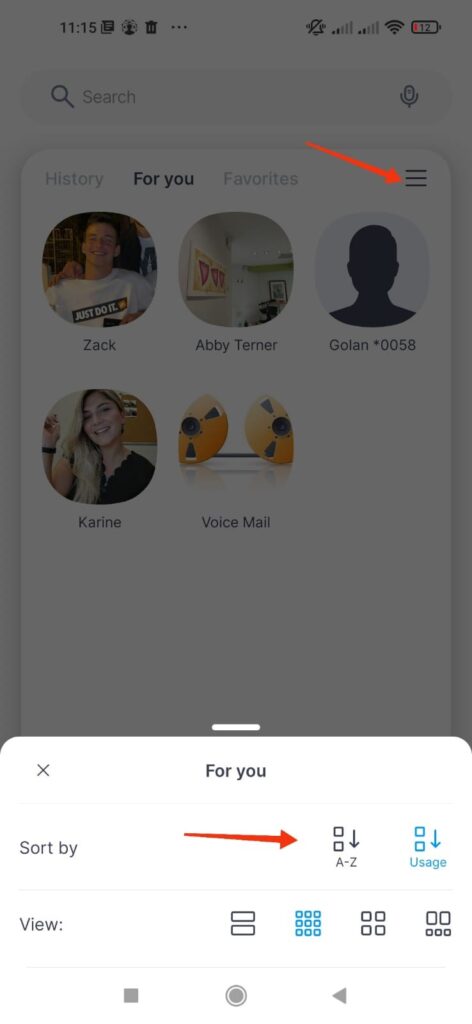
After completing registration, contacts will be sorted alphabetically with the ones we found photos for on top. Once you start making calls, your contacts will begin to be sorted intuitively. The contacts you call or message most often will be easily accessible underneath favorites which are always pinned to the top row.
To change the default sorting, click the hamburger menu (☰) and then choose if you would like your contacts to be organized alphabetically or by usage.
You can make a call to one of your contacts using 3 different methods:
- Tap the phone button near the name/number –
- Long press on a contact for a few seconds
- Tap on the person you want to call -> press the profile button -> press the call button
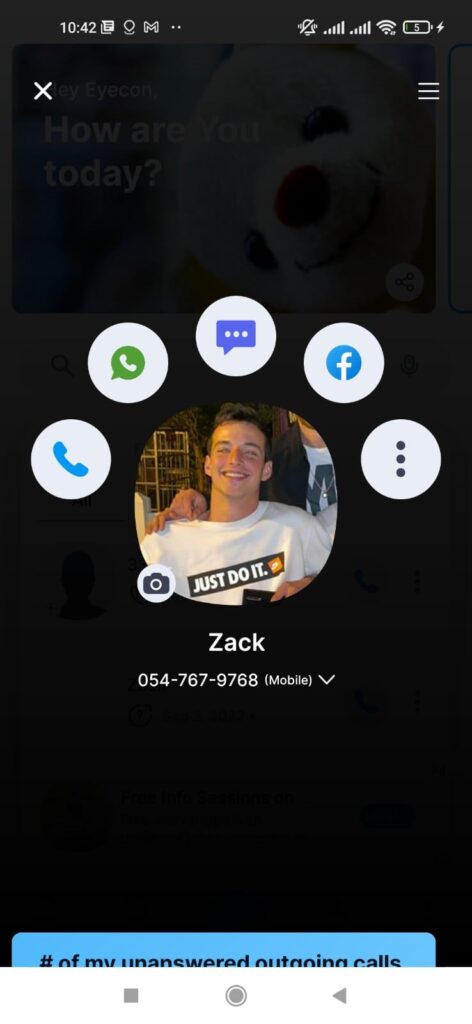
To call someone who is not already in your address book, press on the number pad (from the bottom center of the screen) and make the call from there. At the end of your conversation, you will be asked if you want to add the number as a contact with the photo and name of the number already filled out for you.
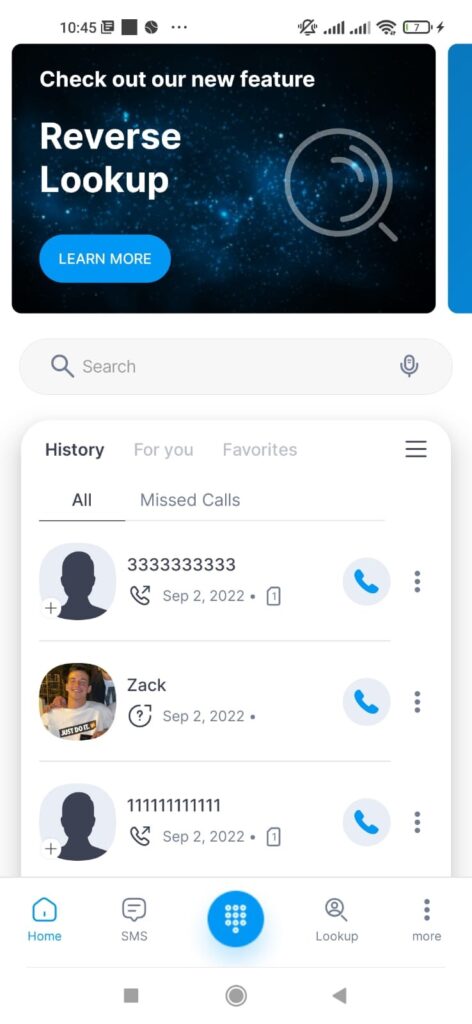
Please note, all calls made via Eyecon will be executed by the native Android call interface.
Getting Started
Close Eyecon from the App Manager (may be called Apps on some devices)
Go to your device Settings
Tap Accounts > Tap Google
Make sure you’re using the correct account
Go to device Settings
Go to the Account section
Select your Google account
Synchronize the account
Open the app

Download Eyecon now